Register each person before they enter. A signed copy is emailed to them and kept in the app.
Site / location today optional
People signing on
Personal protective equipment (PPE)
Site terms & conditions
Site photos & video optional
Add photos of the people signed on and general site areas. Each photo is GPS-stamped and watermarked.
Induction notes optional
Record what was discussed in the induction — it’s transcribed to notes you can edit before saving.
Photo form
Capture site photos
Name the set, then add photos. Every photo is GPS-stamped and watermarked and appears in the Job Loop office portal by person.
Form name
Site / location optional
Photos & video
Notes optional
Type a note, or record a voice note and it’s transcribed for you.
Extra work
Claim work beyond scope
Anything outside what the job was scoped for. Submitting emails the admin team with your photos.
Name of the claim
Job optional
Why the extra charges
Photos
Who did you talk to about this
Did the client approve it
Waste disposal
Record a waste drop-off
Capture the docket, the dump, and a sign-off for ACM or liquid waste. Stored in the office portal.
Dropped off by
Type of waste
Disposal facility
SAM-ADA the waste is from
Invoice / docket photo
Photo of the waste being dumped
Signature of the person dropping off
Asset prestart
Daily plant & equipment checklist
Pick the asset — the Service Stream form and its checklist follow from it.
Asset — required
Date of this check
Location
Equipment type
Equipment No.
Hours
Rego
Last service date
Next service date
The NDD sheet asks for these every time — they print in the form's header.
Checklist
General comments
Photos optional — e.g. a fault
Printed name
Signature
Drilling artefacts
—
—
Base artefacts
0 / 0
Rock artefacts
—
Job complete unlocks once the 7 required artefacts are captured.
Section
Section
Tap Add photo on each item. Every photo is stamped and saved to the job.
Pre-scope
Pre-scope
Plan the job. Saved for the office and the crew — the mud map flows into the permit.
Clear to dig
Permit approved 3:44 pm. Work the sequence below — Job Loop asks for each artefact at the point you need it.
Authority to Work — Permit to Dig
Services located, IFC drawing confirmed and pot-hole photo captured. Sign to record the permit against this job.
Permit recorded ✓
Next up
Site with drill unloaded & set up
Section 3 · required · 1 photo
Then
Struck rock?Notify your Service Stream supervisor immediately and lodge the claim within 5 business days.
Section 5 · Pipe completed
Link-up A — tape 450 mm, rope & duct tag
Tape measure showing 450 mm, rope in duct and duct tag.
Example — tap to enlarge
Your photo — tap to view
Required Not captured
Every photo is stamped with
Address and GPS coordinates
Date and time to the second
Job number and SAM-ADA
Your initials
Your company logo
AI photo review
Checking your photo…
AI reviewing…
—
—
A return visit for one photo costs around $500. Two taps now saves the trip.
Required · not captured
Inside pit with pit tag visible
Stand square over the open pit. The SAM ID on the tag must be readable in the frame.
The photo must show
The whole pit opening, taken square from above
The pit tag with the SAM ID readable
Ducts entering the pit
No shadow across the tag
Example — tap to enlarge
Your photo — tap to view
Required Not captured
Note for the office
Optional
Sign off and send
Pack contents
13 required artefacts8 of 13
Pit details form1 field left
AI checks passed8 of 8
Team leader signatureSigned
Client representativeNot needed
Team leader signature
Sign here
Zack Marks · 16 Aug 2026
Clear
I confirm the works are complete and the evidence in this pack is a true record of the site.
Sends the pack to the office for review in the client portal.
End of day
Daily report
—
Preview brand
Job LoopGroundLinx
Section 4 · Bore log
Rod by rod
used to work out rock metres (rock rods × rod length)
Rod
Logged · depth · alignment · OTR or rock
Evidence
Date and time are stamped automatically when the rod is logged and cannot be edited.
Add the next rod
Date drilled
Depth this rod (m)
Alignment this rod
Ground condition
OTR
Depth only
Rock
Photo required · video optional
Rock selected — photo mandatory, video optional
Example — tap to enlarge
Your photo — tap to view
Required Not captured
Next rock rod in
--:--
Rock rods must be at least 12 minutes apart — one rod ≈ one drill run through rock. OTR rods have no wait.
Signatures
Team leader
Zack Marks · 16 Aug 2026
Signed
Client representative
Optional for this job
Add
Saves rods, rock metres and evidence status. Rock rods are flagged in the pack for the office.
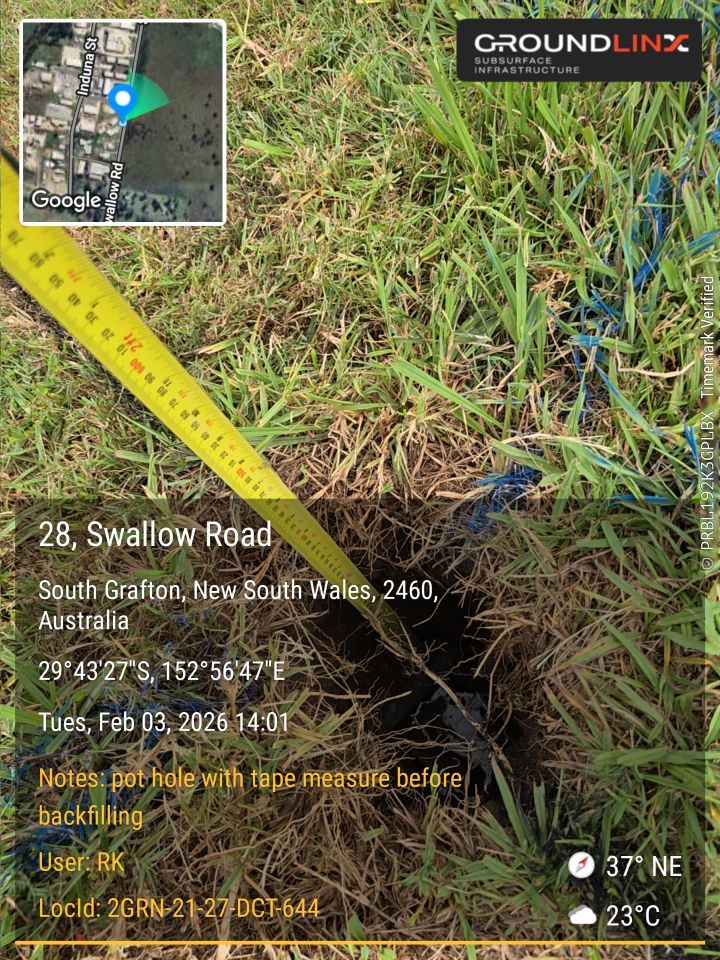
Pot-holing · locate services
New pot-hole
Classify what you exposed — this record publishes to Subsurface.ai
Asset type
Asset detail
Depth to service (mm)
Photo
Example — tap to enlarge
Your photo — tap to view
Required Not captured
Depth is mandatory on pot-hole photosSubsurface shows the depth and photo on the map, so every pot-hole record needs a measured depth to the service.
Pot-holing · locate services
Pot-holes on this job
Add one record per service you expose — each publishes to Subsurface.ai. Most jobs have several.
Pit install
—
—
0 / 13
Artefacts captured
0%
Required photos still missingThe pit record cannot be sent for sign-off until every required photo is captured. Tap any outstanding item to capture it.
Pit record
Pit details
P5 · 8 Benham St, Chisholm ACT
Pit ID
P5
SAM-ADA
4190233
Depth to invert
0.8 m
Bedding material
20 mm blue metal
Surface type reinstated
Pit type
Gaskets and lid
Record incompleteChoose the reinstated surface type to complete the pit details form.
Saves the pit record to Job Loop for the office pack.
Rock claim
Rock notification
Directional drilling · Service Stream rock claim
Notify your supervisor immediatelyCall your Service Stream supervisor the moment you strike rock, then lodge this claim within 5 business days. Lodging emails the Service Stream rock mailbox — it does not replace the phone call.
Date rock struck
Time rock struck
Rock head photo — required
Example — tap to enlarge
Your photo — tap to view
Required Not captured
Service Stream notification
These go straight into the rock notification email. What we know from the job is filled in — check it and correct anything that is wrong.
Duct / asset number — the email subject
SAM
ADA - DFN
Address
Excavation dimensions
Depth (m)
Width (m)
Length (m)
Construction method
Category
Rock — required for a Validation required category
Contact person on site
IFDV · design verification
Can't build as designed
Raise an IFDV when the job cannot be built as per the design. This sends the details to the office and the client contacts you tick.
Call it in firstSpeak to your Service Stream contact on site, then lodge this IFDV with photos and a short video so the office can action a redesign.
Raised
—
Why can't we build as per design? — required
Who did you speak to? — name & company
Photos & video — required
Notify these client contacts
Asset strike · incident
Report an asset strike
Record it here on site. Submitting notifies Service Stream and the asset owner with the location and your evidence.
Make the area safe firstStop work, isolate the area and call it in. Fill this out once everyone is safe — it does not replace an emergency call to the asset owner.
Job optional
Date & time of the incident
Reported
—
Asset owner — required
What asset was damaged? — required
What happened? — required
Location
Getting GPS…
Photos & video — required
Voice note optional
Say what happened and it is transcribed for you — check the words before you submit.
Leave request
Request time off
Send it to the office. You will see it here with its status once it is reviewed.
Type of leave
First day off
Last day off
Days
Counted from the dates — change it for a half day.
Reason — required
Expense reimbursement
Claim what you spent
Snap the receipt and send it. The office approves it and marks it paid.
Date you paid
Category
Amount (AUD) — required
What was it for? — required
Receipt photo — required
Your receipt — tap to view
Required Not captured
Lay it flat and get the total in shot. Receipts are private — only you and the office can open them.
Support
Help & guides
How the app works, screen by screen. If it is still not right, call the office.
Something broken, something to change, or an idea. It goes to the office with your name on it.
What kind?
Photos
Your account
My details
Signed in
Name—
Email—
Workspace—
Role—
Your details
Password
Notifications
Something not right?
This app
Build—
Offline store—
Connection—
Signing out clears this phone’s session. Anything already synced stays on the job.
Plant & equipment
Asset & equipment
Everything about a truck, rig or plant item, from the sticker on the machine.
📷
Use your normal phone camera to scan the QR code on the asset.
Point the camera at the sticker and tap the link that pops up. There is nothing to open in this app first.
Scanning the asset shows you
What the sticker looks like
Every truck, rig and major plant item has one of these stickers — usually on the door, the dash or the control panel.
Not live yetThe asset pages behind these stickers are still being built. Scanning will open them as soon as they are ready — until then, use the pre-start form below and ask the office for a manual or service history.
Can’t find the sticker, or it won’t scan?
Monthly compliance
Stand pipe reading
One reading per stand pipe, each month.
This month
Person completing
Stand pipe number — required
Meter reading — required
kL
Read the kilolitre dials on the Icon meter — the same number you photograph.
Photo of the reading — required
Your photo — tap to view
Required Not captured
Get in close so the kL dials are readable, with the stand pipe number in frame if you can.